Loading…
Windows installation guide
Follow the prompts. Get started.
Match any security prompt to the screenshots below. If none appear, continue with setup.
The current Windows installer is not certificate-signed. Confirm the file came from the official HMind website before deciding to continue.
Download the installer, then open it.
In Chrome, open the .exe when it finishes downloading. If Edge flags an uncommon download, choose “···” → “Keep”, then “Keep anyway”.
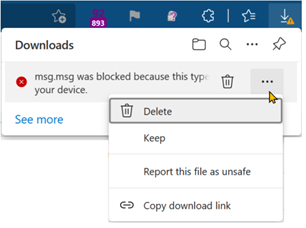
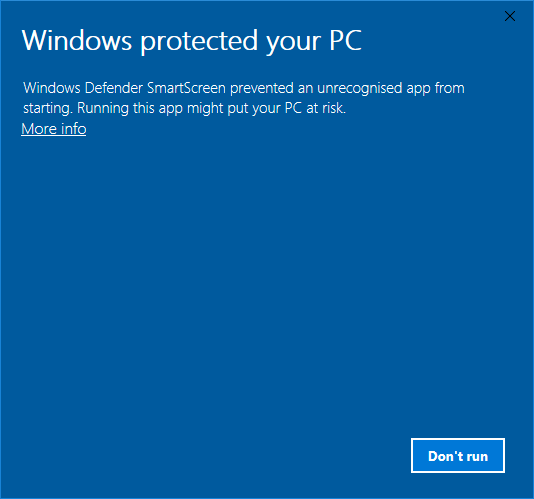
Windows warning? Select “More info”.
After opening the installer, select “More info”, check the app name, then choose “Run anyway”.
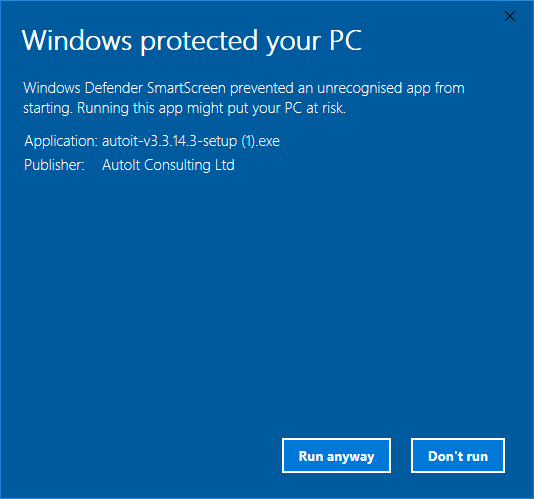
No “Run anyway” option?
Smart App Control or an organization policy may prevent installation. Contact your administrator or use the web app; do not disable security protection. If a virus or malware is explicitly detected, stop and contact support.
English system screenshots retain the original example app details. Select an image to enlarge.
Follow setup to finish, then open HMind. No sign-up needed.
Download again & check the file
Choose x64 for Intel / AMD PCs, or ARM64 for ARM PCs. Check System type in Settings → System → About.
Open your download folder in PowerShell, run the command and compare the SHA-256 below. If they differ, download again. A hash checks file integrity only.
Get-FileHash '.\HMind-1.0.3-windows-x64.exe' -Algorithm SHA256SHA-256 · c69afc1674c031f5de0fc4c76ad18862a84fd3fde8d45c99cf95a936a21c03b6